Importing publications
As a librarian or administrator, you can import publications into Librario in several ways. This guide explains the import methods available and how to monitor and manage the status of your imports.
Import methods at a glance
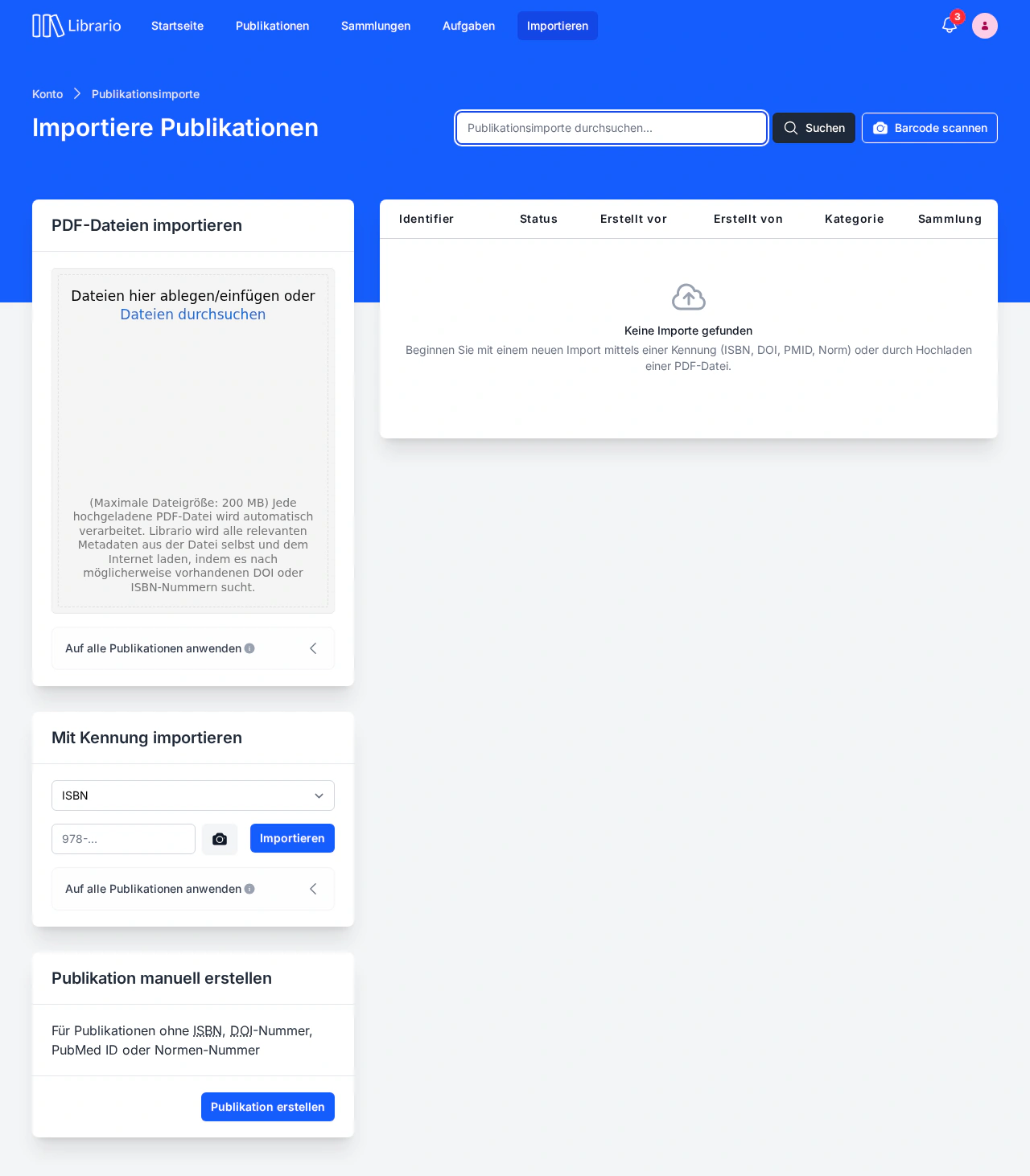
Screenshot of the German interface.
In many organisations only one or a few people look after the library, so Librario offers three ways to add publications, ordered by efficiency and effort:
Importing PDF files (recommended)
The most efficient way to add new publications: upload PDF files by drag and drop; Librario reads the metadata and identifiers from each file. Ideal for bulk imports.
Importing by identifier
For publications with a known identifier: quick capture by ISBN, DOI, PubMed ID, arXiv ID or standard identifier, with automatic metadata enrichment.
Cataloguing manually
The flexible option for special cases: full control over all metadata, ideal for specialised or historical publications without identifiers.
Librario does not read reference data from a .bib or RIS file. It works alongside your reference manager rather than replacing it: add publications from it by their identifier or as a PDF.
About automatic metadata enrichment
Automatic enrichment with metadata from the internet depends on external sources being available. Librario does its best to find matching information, but cannot guarantee that it is complete or available.
Publication imports
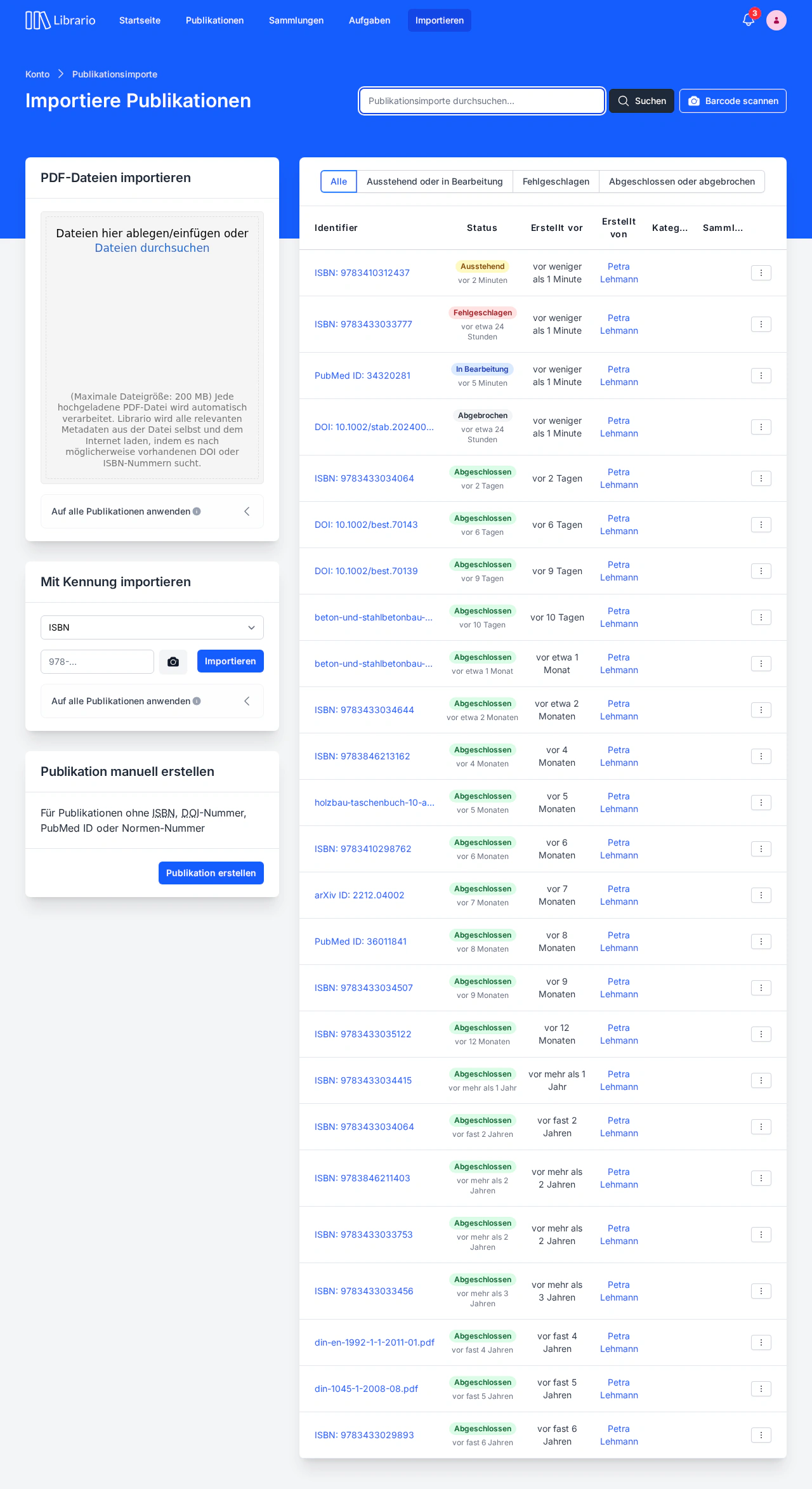
Screenshot of the German interface.
Every import in Librario passes through several statuses, which you can monitor and control. This gives you better control over the import process, especially with larger amounts of data.
Sequence: Pending → Processing → Completed or Failed. Until an import has completed, you can cancel it.
Import statuses at a glance
| Status | Meaning | Possible actions |
|---|---|---|
| Pending | The publication is queued for import. Processing starts automatically. | Cancel: cancel the import if you no longer need it; Edit: correct the identifier; Delete: permanently remove the import together with its publication and file |
| Processing | The import is being processed. Metadata is extracted and enriched. | Cancel: stop processing if it takes too long; Delete: permanently remove the import together with its publication and file |
| Completed | The import finished successfully. The publication is available in the library. | Check the publication and add to it where needed |
| Failed | An error occurred during processing. | Retry: start the import again; Edit: correct the identifier; Cancel: cancel the import for good; Delete: permanently remove the import together with its publication and file; the Error message is on the import’s detail page |
| Cancelled | The import was cancelled manually. Librario does not look up any metadata, but creates a publication with the identifiers entered and the uploaded file (or keeps the one already created), which you can complete by hand. | Retry: restart the import with the same data; Edit: correct the identifier |
Tips for an efficient import workflow
To streamline the import process and keep data quality high, we recommend this approach:
- Preparation: gather all the information and files you need before the import
- Import in batches: import similar publications together so they get consistent metadata
- Status monitoring: check the status of your imports regularly and deal with failed imports promptly
- Quality control: set up a review process for new publications
- Documentation: write down your import guidelines, especially when several people import publications
With these tips and the different import methods, you can build up and maintain your library efficiently.
For ongoing quality assurance of imported publications, we recommend quality reviews through task management: in plans with advanced task management, Librario automatically creates a quality review task after every completed import. Your library team can then go through the newly imported publications systematically and mark them as reviewed.