Cataloguing publications manually
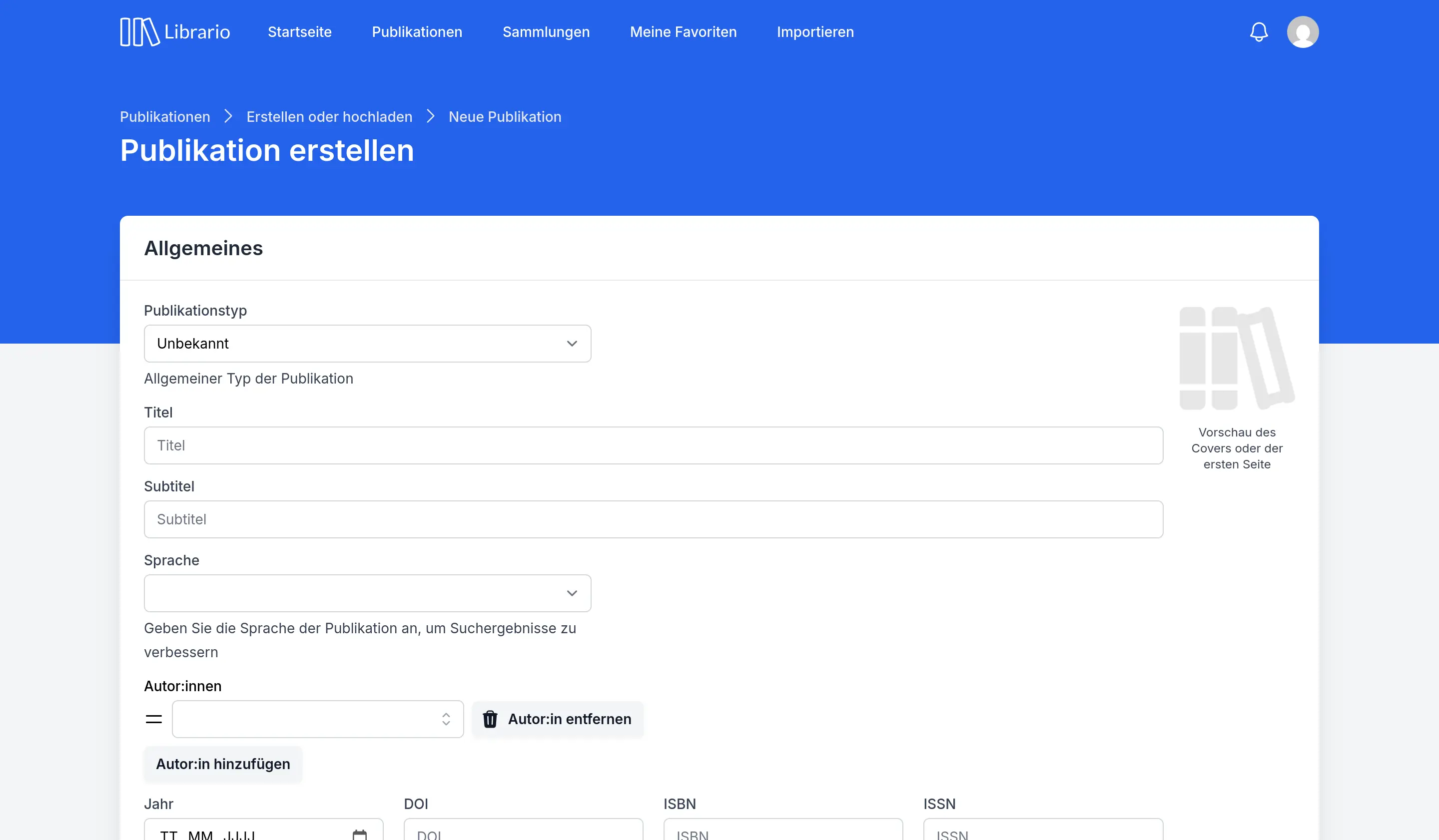
Screenshot of the German interface.
Manual cataloguing gives you full control over all the metadata of a publication. It is the right method when an import by identifier does not work. This is often the case for:
- Theses (bachelor’s, master’s, doctoral)
- Training materials or lecture notes
- Historical publications without identifiers
- Specialist literature that common databases do not cover
- Your organisation’s own publications, such as reports
Creating a publication
To catalogue a new publication manually:
- Open Import in the main navigation
- In the Create publication manually card, click Create publication
- First choose the matching publication type (e.g. book, article, standard)
Form fields that adapt
The available fields adapt automatically to the publication type you choose. Frequently used fields are at the top, all others under Additional information.
Librario saves the publication only when you click Save at the end of the form. You can add to or correct the details at any time later.
Recording the key metadata
Technically, only the Title is a required field. We still recommend the following details, because they matter for how people use the library:
- Language: needed for correct text processing and search
- Publication date: the year, month or day of publication places it in chronological order
- Publication type: sets the kind of publication and with it the available fields
Other important fields
The more information you record, the easier the publication is to find later. The bibliographic fields reference explains every field in detail.
Our best practices explain how to use special fields such as the original title or the parent publication correctly.
Adding files
In the Files section you can upload files such as PDF documents: for example the full text of the publication, an existing table of contents and index, or supplementary material.
Full-text search
Librario checks every file of a publication for searchable text. If it finds no text, for example in a scanned document, you see a notice. In that case you can optimise the file for full-text search.
Setting the cover
Every publication shows a cover on its publication card and on its detail page. Librario finds this cover automatically: from the first page of an attached file, or by ISBN from online sources. You do not need to do anything. If Librario finds neither a suitable file nor an image online, a neutral placeholder appears.
In the General section you can also upload your own cover to the right of the fields. As soon as you pick an image, a preview shows how the cover will look.
Your own image comes first
A cover you upload yourself always takes priority over the one Librario finds automatically. If the cover found automatically does not match the edition you hold, simply upload your own image.
Managing hard copies
Add a hard copy for every physical copy of the publication (section Hard copies, button Add a hard copy). This is the only way to keep a complete overview of your holdings.
The documentation on managing hard copies covers the details.
Categorisation
In the last section, Additional information, you record:
- Categories: subject classification for navigation (see the best practices for categories)
- Keywords: additional search terms
- Notes: remarks on the publication that everyone can see on its detail page
Markdown for formatting
In text fields such as Abstract and Notes you can use Markdown for formatting. Markdown is a simple markup language for structuring text, for example with bold, italics or lists. A link below the text field explains the Markdown syntax.