Importing by identifier
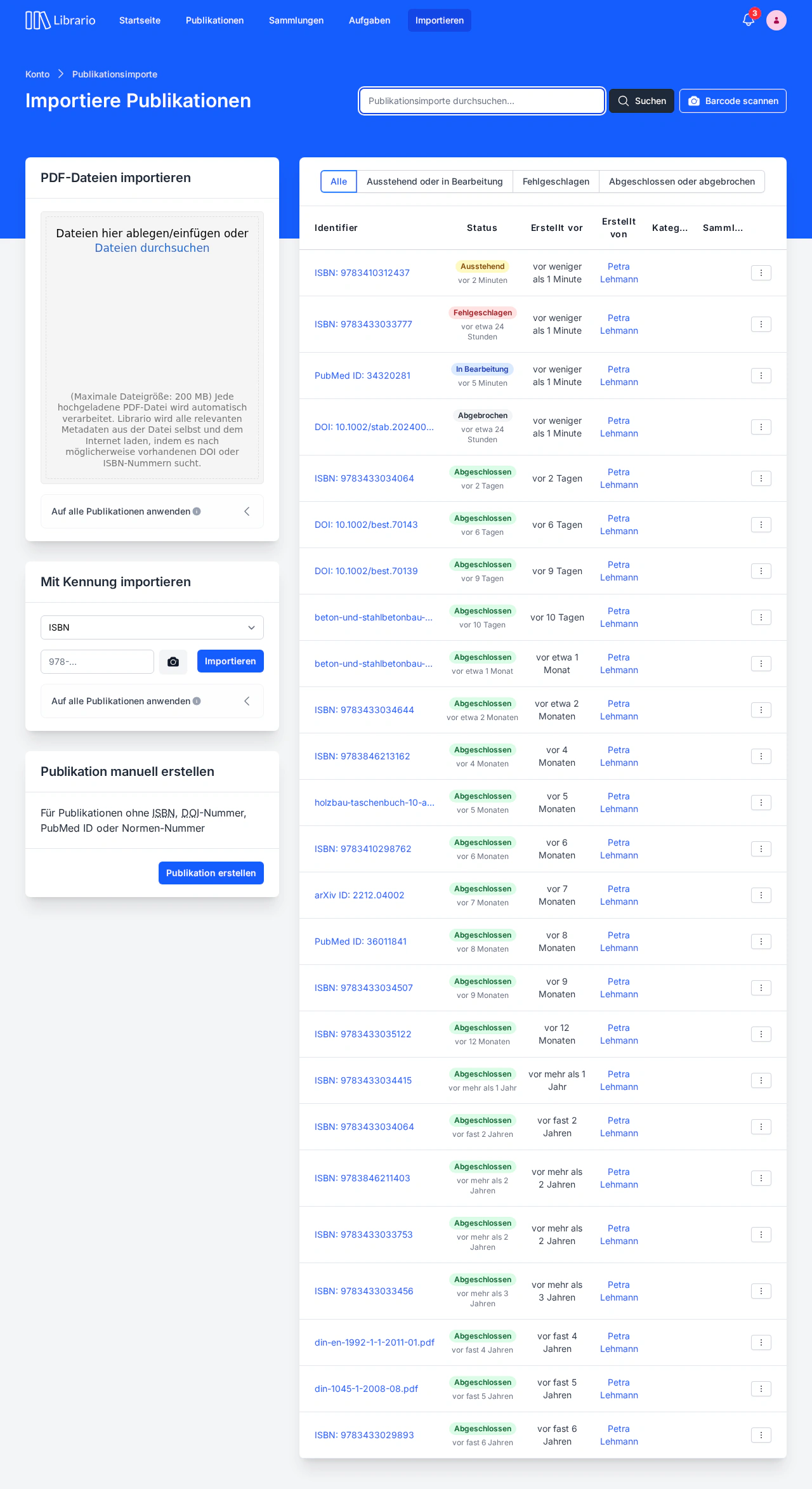
Screenshot of the German interface.
Importing by identifier suits books, journal articles, preprints and standards whose identifier you know, for example printed books you want to catalogue in your library.
During the import, Librario searches library catalogues and specialist databases for metadata and adds it to the publication.
For ISBNs, Librario checks the German National Library first, then Open Library and Google Books, which also list books from international publishers.
It resolves DOIs through the DOI registration agency (for example Crossref), PubMed IDs through PubMed and arXiv IDs through arXiv.
This works for several kinds of identifier: ISBNs for books, DOIs for journal articles, PubMed IDs for medical literature, arXiv IDs for preprints and standard identifiers for standards (for example EN 1992-1-1).
If you have PDF files instead, use Importing PDF files, which also analyses the full text.
Prerequisites
Librarians and admins can import publications.
To import a publication by identifier, the publication must carry a unique identifier.
For books, you usually find the ISBN as a barcode on the back cover or on one of the first pages inside. Librario handles both the older ISBN-10 and the current ISBN-13.
For journal articles, look for the DOI, which is usually printed on the first page of the article.
A typical example looks like this: 10.1002/best.70139.
Medical literature often also has a PubMed ID (PMID), which you can use for the import.
Prefer a DOI to an ISBN
Some books have both an ISBN and a DOI. In that case, use the DOI: the sources linked to it are usually more complete and more up to date.
Importing a publication
To import a publication by identifier:
- Click Import in the main navigation
- Find the Import by identifier area on the left
- Choose the identifier type (ISBN, DOI, PubMed ID, arXiv ID or Standard identifier) from the list
- Enter the identifier in the input field
- Click Import
Each import takes exactly one identifier. For a shelf of books, the barcode scanner is quicker. To bring over a larger collection, see Data migration.
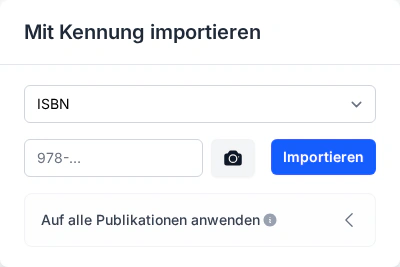
Screenshot of the German interface.
Once you click Import, the new publication appears straight away as an import in the list on the right, with the status Pending. Librario completes the import on its own. It takes these steps:
- Librario uses the identifier to search several sources for the publication’s metadata.
- For books, Librario also downloads the table of contents as a PDF file where one is available. Full-text search uses it like an index, which improves the search results.
No metadata found?
Sometimes Librario finds no metadata for a publication. This is usually because the available sources do not cover the publication yet, or no longer cover it. This happens most often with older works, highly specialised literature or very recent publications. In that case, catalogue the publication manually.
The import then has the status Failed. Cancel the import and finish editing the publication Librario created by hand.
Scanning a barcode
Instead of typing the ISBN, you can scan the barcode on the back of the book with your camera. Open the scanner with the Scan barcode button in the page header or with the camera icon next to the ISBN field. Once Librario recognises the barcode, check the ISBN in the confirmation dialog and start the import.

Screenshot of the German interface.
Duplicate detection
As soon as you click Import, Librario checks whether a publication with the same identifier is already in the library. This helps you avoid unwanted duplicates and improves the quality of your library data. Librario checks the identifier you entered (ISBN, DOI, PubMed ID, arXiv ID or standard identifier).

Screenshot of the German interface.
How it works:
- If Librario finds a possible duplicate, a dialog appears that links to the existing publication (see screenshot)
- You decide whether to go ahead with the import or cancel it
- With Force import, Librario creates a new publication anyway
- With Cancel, Librario creates no import
Adding hard copies
If you keep a physical copy of the publication in your library, you should add at least one hard copy, Librario’s record of that copy on your shelves. Right after the import, Librario shows a dialog for adding hard copies. In it you record the exact location of the copy and can give it your own shelfmark. You also decide whether the copy can be lent out or is a reference-only copy for use on site.
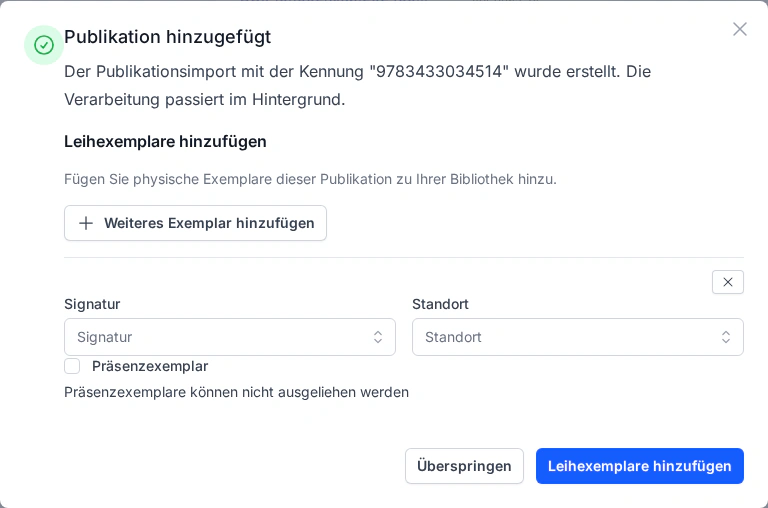
Screenshot of the German interface.
For a full guide, see Managing hard copies.
Checking and completing the metadata
After a successful import, check the imported metadata of the publication and add to it or correct it where needed. To make the publication easier to find, make sure the language is right and the matching categories are assigned.