Windows Explorer integration
Password sign-in only
Windows signs in with a username and password and does not support signing in through a web page. If you sign in to Librario with the button Sign in with Microsoft Entra ID, your account uses single sign-on. The integration then only works if your account also allows signing in with email address and password and you have a Librario password (through Forgot your password? on the sign-in page).
With the Librario search connector, you search your library from Windows File Explorer. You type your search terms into the Explorer search box and see the results with title, authors and thumbnail. Double-clicking a result opens the publication in Librario in your default browser.
Requirements
- Windows 10 or Windows 11 with File Explorer
- Sign-in details for your Librario account (username and password)
Set-up in three steps
Step 1: Download the search provider
- Open your Librario library in the browser.
- Click your profile picture at the top right and choose Integrations.
- On the Windows Explorer card, click Download search provider.
- Your browser downloads the file
opensearch.osdx.

Screenshot of the German interface.
Step 2: Install the search connector
- Double-click the downloaded file
opensearch.osdx. - Windows asks whether to add the search connector.
- Confirm with Add.
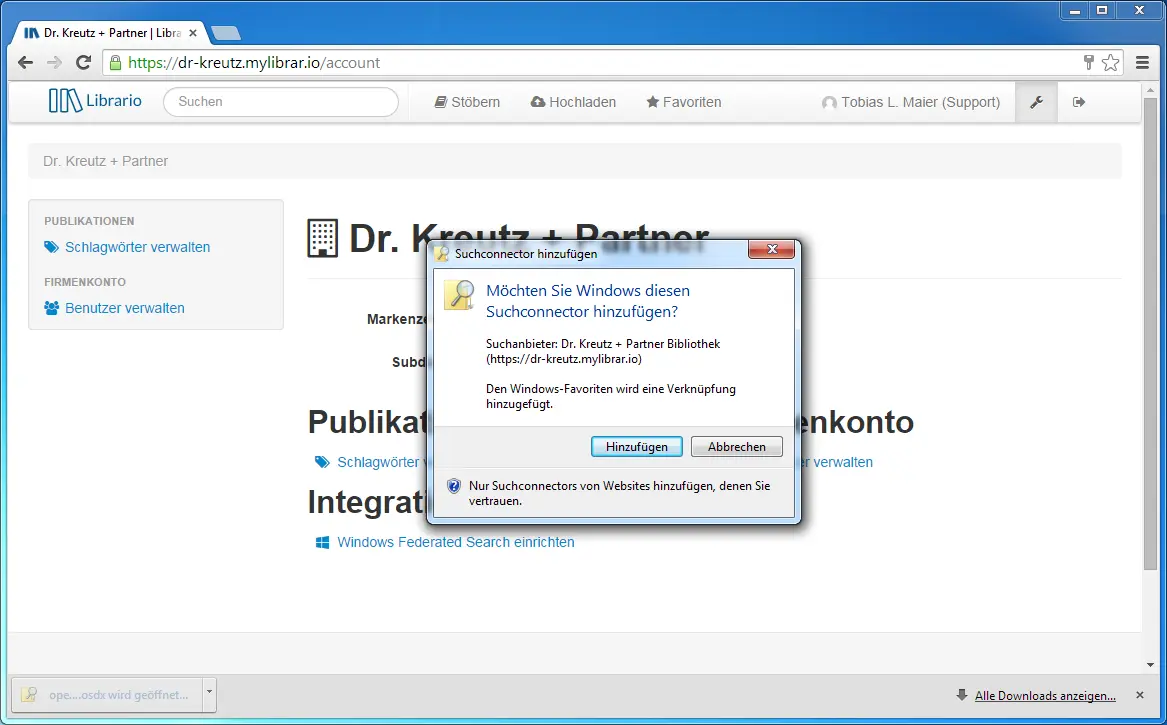
Screenshot of the German interface.
Step 3: Store your sign-in details
- After installation, Windows opens the search connector in Explorer.
- Windows asks for your Librario sign-in details, at the latest on your first search.
- Enter your username and password.
- Tick Remember my credentials so Windows does not ask again on every search.
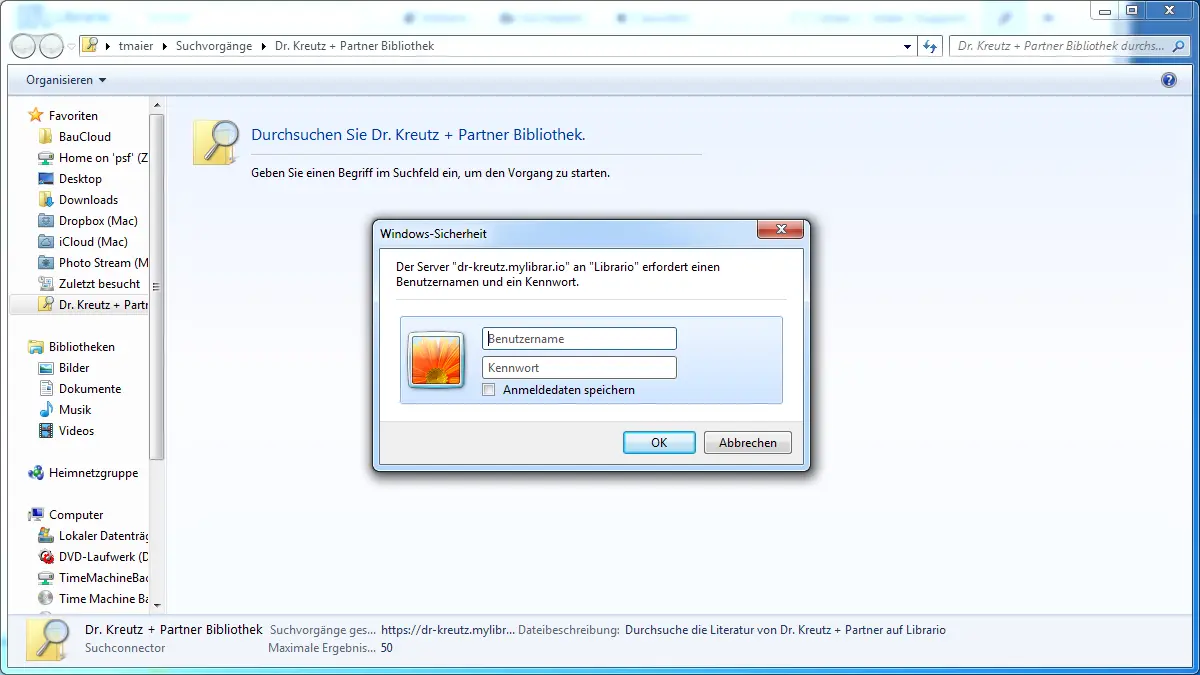
Screenshot of the German interface.
Search your library in Explorer
- Open the Searches folder in your user folder (
%USERPROFILE%\Searches) and then the Librario search connector. Right-click it to pin it to Quick access, so you can reach it straight from the navigation pane on the left. - Type your search terms into the search box at the top right of the Explorer window.
- Explorer shows the results with title, authors, abstract and thumbnail.
- Double-click a result. Windows opens the publication’s page in Librario in your default browser. There you see all the details of the publication and open attached files.
Choose a view
The Content view in Explorer shows the abstract and thumbnail for each result, which gives the best overview. You choose it in the Explorer view options.
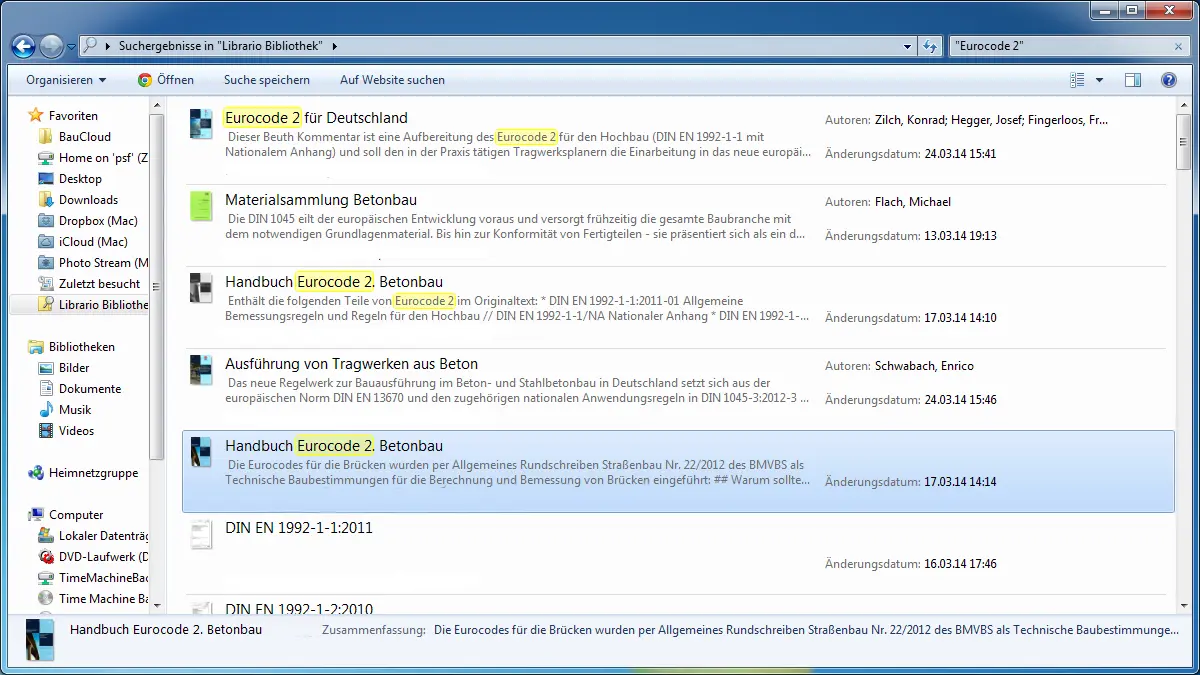
Screenshot of the German interface.
Limitations
- Results are links, not files: a result opens the publication page in the browser. Explorer shows no preview of the PDF, and you cannot drag the file from the result list to the desktop.
- Separate sign-in in the browser: the browser does not use the sign-in details stored in Explorer. If you are not signed in to Librario in the browser, sign in there once.
- Password sign-in only: see the note above.
Frequently asked questions
Search has stopped working
If search suddenly stops working, check the following:
- Are your stored sign-in details still current? After a password change, update the entry in Windows Credential Manager or remove it, so Windows asks again on your next search.
- Is your internet connection stable?
- Can you reach Librario in the browser?
Where do I find the search connector again?
The search connector sits in the Searches folder of your user folder (%USERPROFILE%\Searches).
If it is missing there, download the file again and open it.
Can I remove the integration?
Yes. Delete the Librario search connector in the Searches folder of your user folder.