Managing collections
Collections in Librario let you group related publications by topic and manage them together.
Unlike personal favourites, collections are meant for teamwork. They work especially well as working collections: the literature a particular department or project keeps to hand.
What collections are for
An important use case is specialist teams (centres of excellence) and departments. Keeping the relevant specialist literature in one central collection helps you:
- Bring new employees up to speed quickly
- Make the core works of the field available in one place
- Document standards and key works
Besides specialist teams, collections are often used to manage project literature and to document research projects.
The collections overview
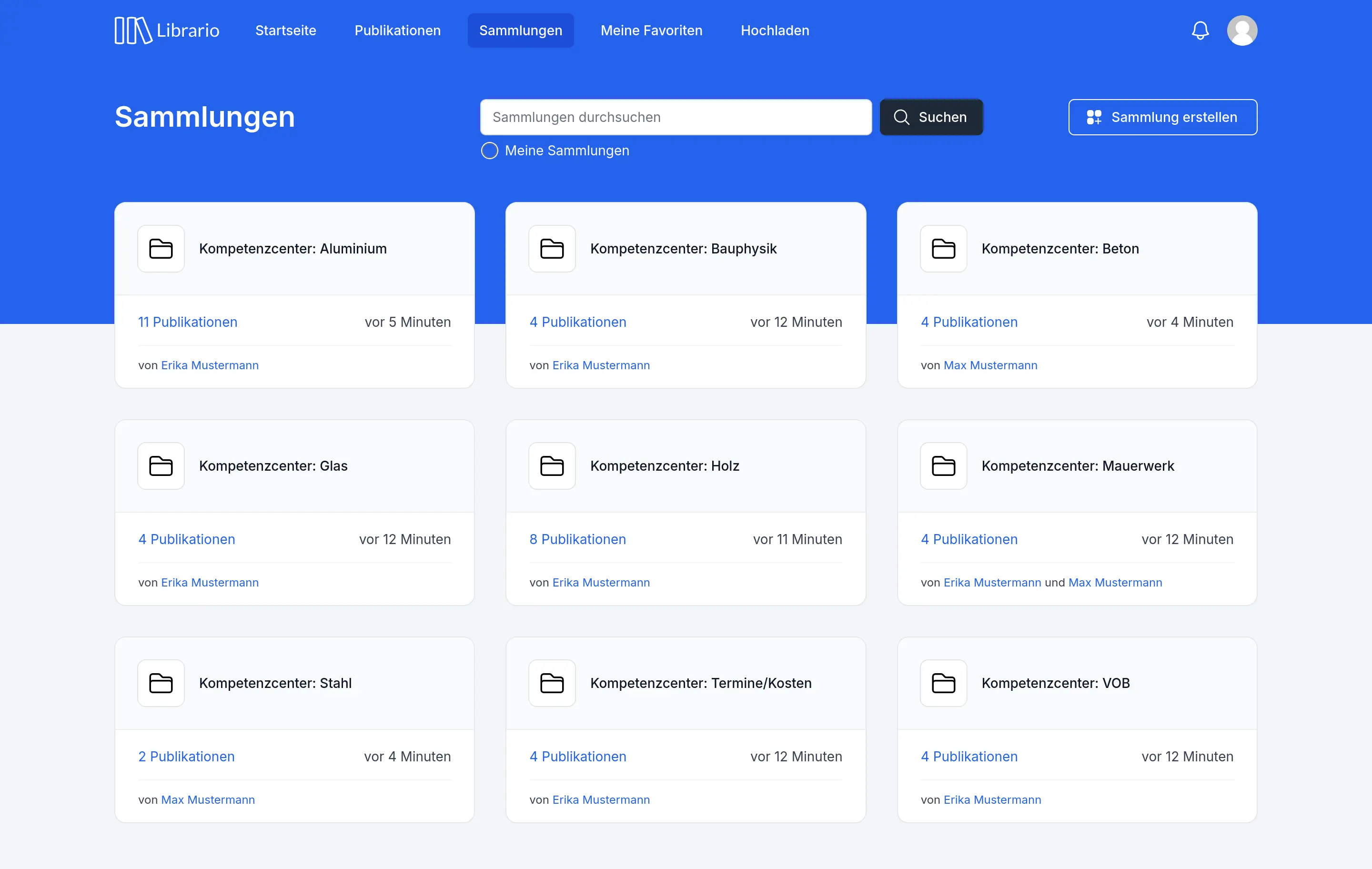
Screenshot of the German interface.
You reach the collections overview through Collections in the main navigation. At a glance you see:
- All collections in your organisation
- The number of publications in each
- The date of the last update
- The owners of the collection
The search bar searches the names of the collections. With My collections and Editable collections you narrow the list to collections you own or may edit.
Creating a collection
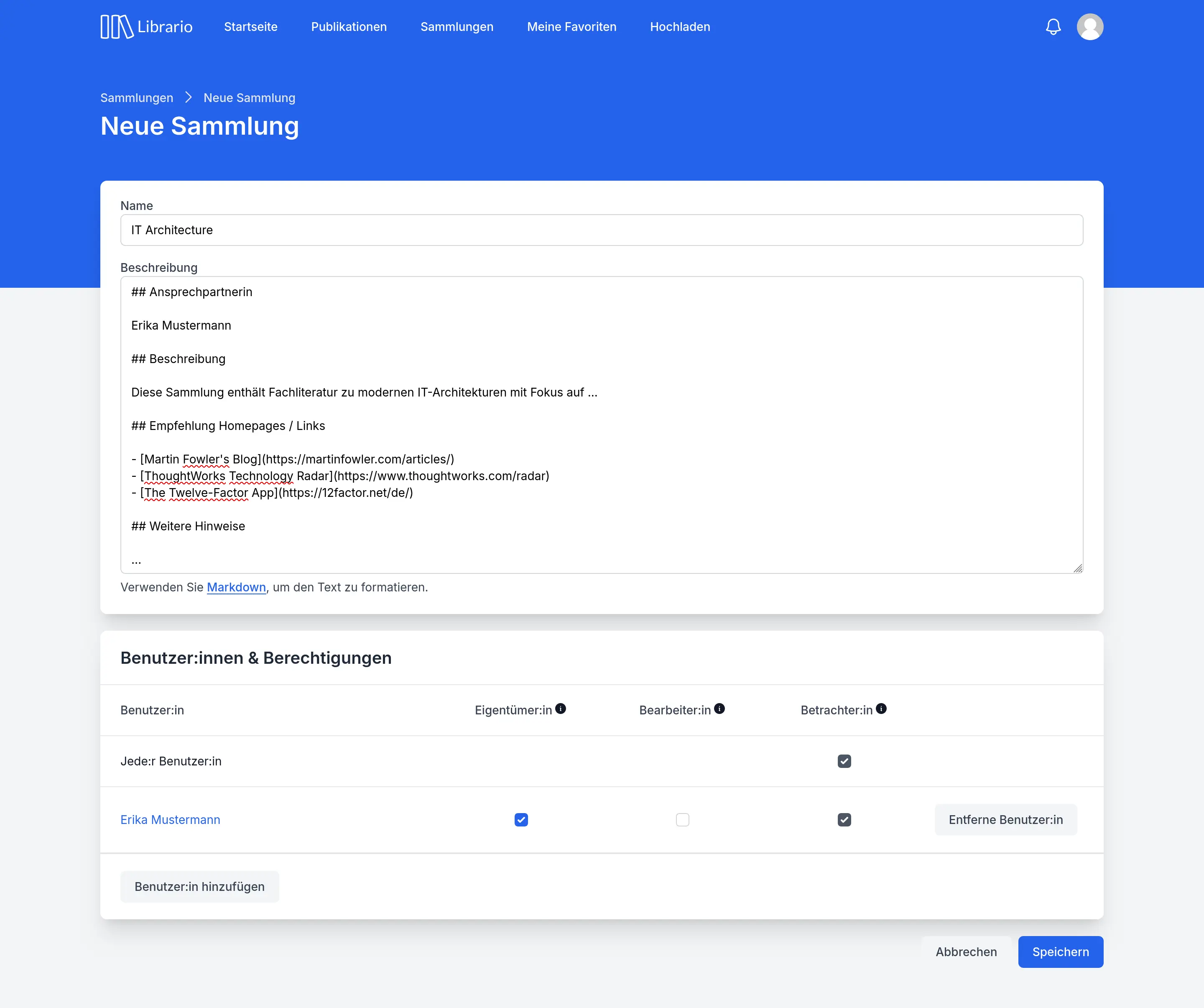
Screenshot of the German interface.
To create a new collection:
- Click Create new collection
- Give it a meaningful name
- Add a description and useful links, for example to internal resources
- Assign further editors and owners
Markdown for formatting
In the Description field you can use Markdown for formatting, for example bold, italics, lists or links. The hint below the field links to an explanation of the syntax.
Managing publications
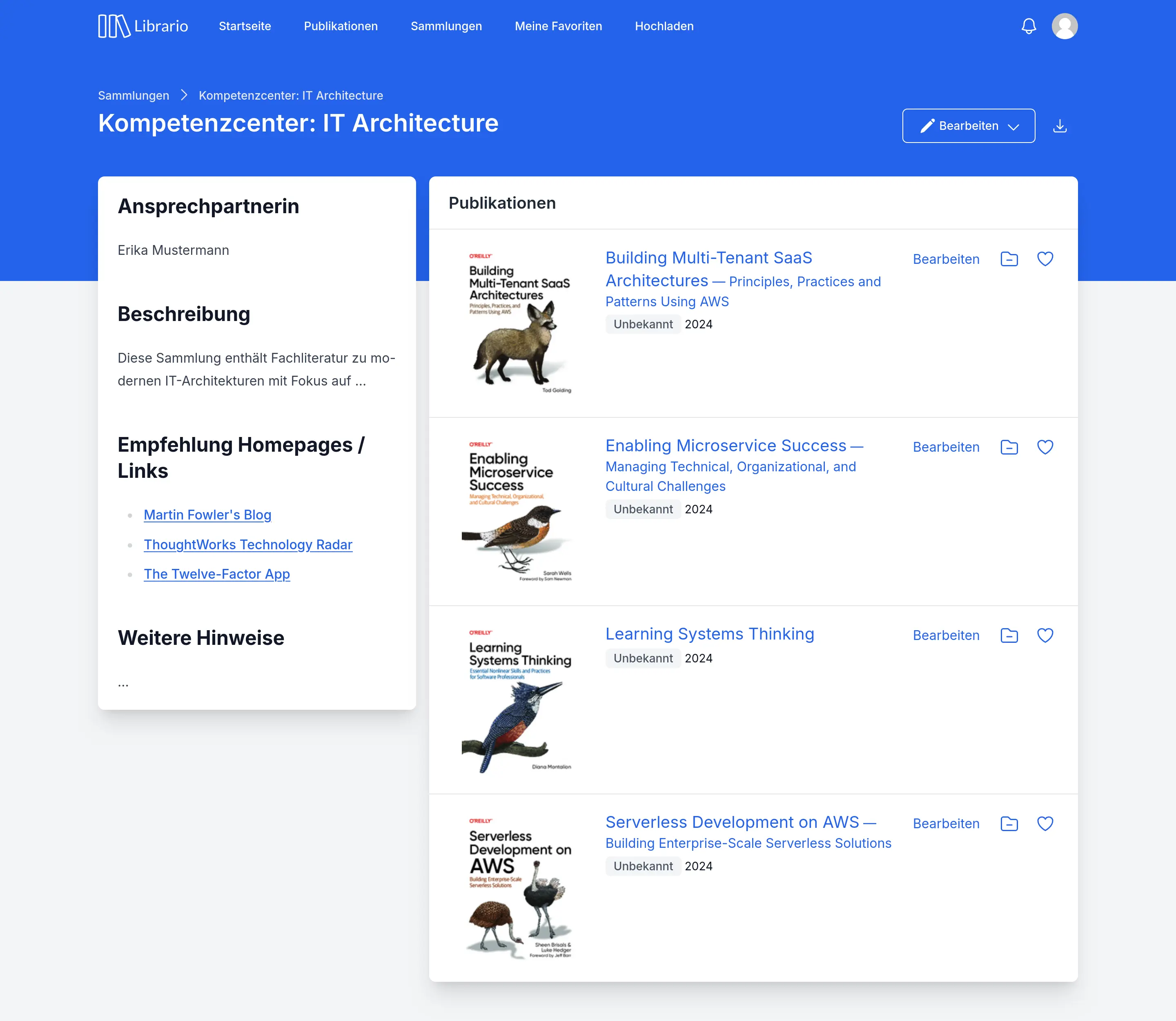
Screenshot of the German interface.
There are two ways to add publications to a collection:
- In the search results, with the folder icon Add to collection on the publication card
- On the detail page of a publication, with the Add to collection button
Permissions and collaboration
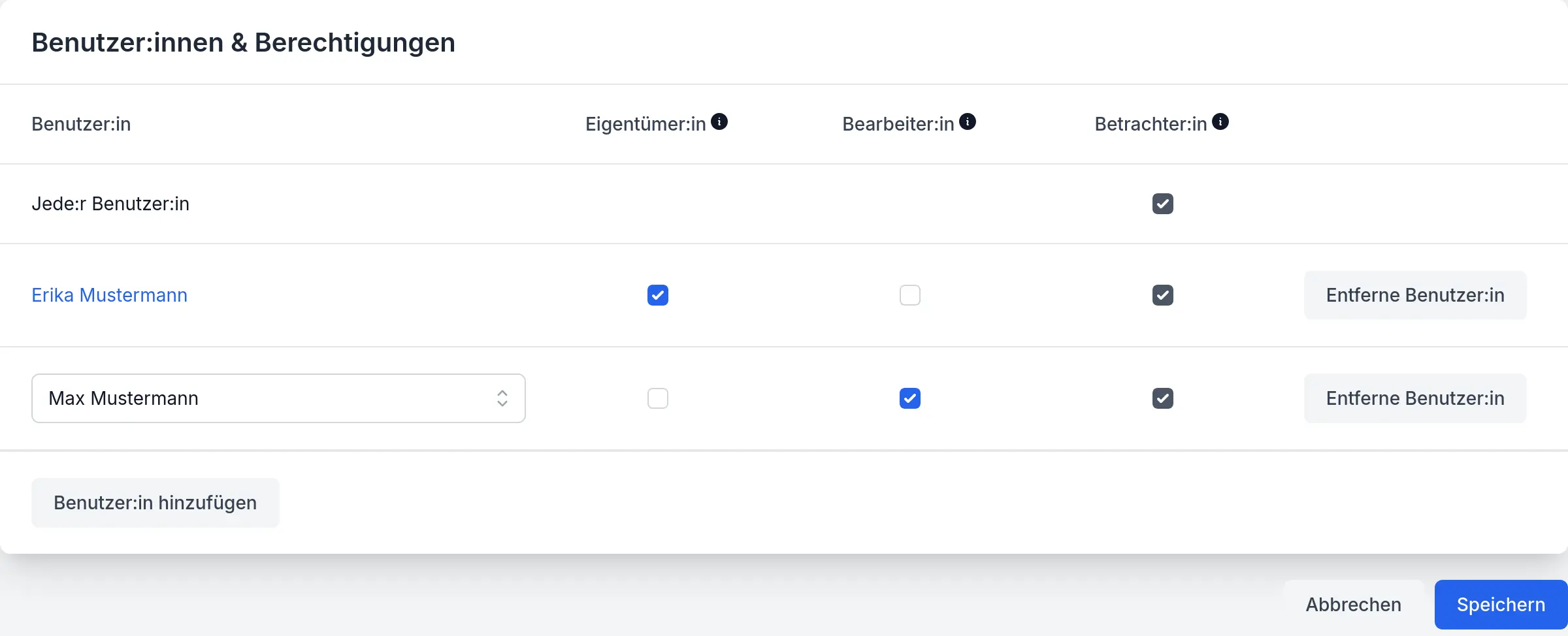
Screenshot of the German interface.
Collections are visible to all employees in your organisation. This encourages knowledge sharing and makes relevant literature easy to find.
You assign permissions under Edit, in the Users & permissions section.
There are three permission levels for managing a collection:
Viewers (all users)
- Can see the collection and its publications
- Have access to the descriptions and links it holds
- Can export the list of publications
Editors
- Have all the rights of viewers
- Can add publications to the collection or remove them
- May change the name and description of the collection
Owners
- Have all the rights of editors
- Can add further editors and owners
- May delete the collection
Whoever creates a collection becomes its owner automatically. Administrators and librarians have the rights of an owner in every collection.
Exporting publication lists
You can export the publications in a collection.
The export contains all bibliographic information on the publications, so you can import it into a reference manager.
You can choose from three export formats: BibTeX for LaTeX-based systems, CSV for spreadsheets, and EndNote.
- Open the collection you need
- Click the download icon Export
- Choose the format: Export as BibTeX, Export as EndNote or Export as CSV
Practical recommendations
What works best depends on how you use a collection. The following recommendations are based on our customers’ experience.
General recommendations
- Choose meaningful names that describe what the collection contains
- Record the purpose of the collection in its description
- Name the points of contact for subject-matter questions
Recommendations for specialist teams
- Choose a consistent naming convention, such as “[Department] team”
- Name the subject-matter points of contact clearly in the description
- Link other relevant resources in the description, for example a SharePoint folder with calculation tools or CAD templates
Recommendations for projects
- Name the collection after the project number (if there is one) or use the format “YYYY-MM [project name]”, for example “2025-05 Project name”
- Link other relevant resources in the description, for example the link to the project in your project management system