Managing hard copies
This guide explains how you, as a librarian or admin, can manage your library’s physical copies in Librario.
Hard copies are the physical books, journals, and other media in your library. You can add as many copies as you like to each publication. This is especially useful for frequently requested titles or when you keep copies at several locations.
The lending philosophy
Librario deliberately does without overdue notices and strict loan periods. Instead, a transparent overview of who has borrowed which copy fosters collegial collaboration. This approach has proven itself in practice: people are not punished for honestly documenting their loans. When someone needs a copy that is on loan, direct communication often leads to a pragmatic solution.
In the account settings you can adjust the text users see when they borrow or return a copy.
Recording new copies
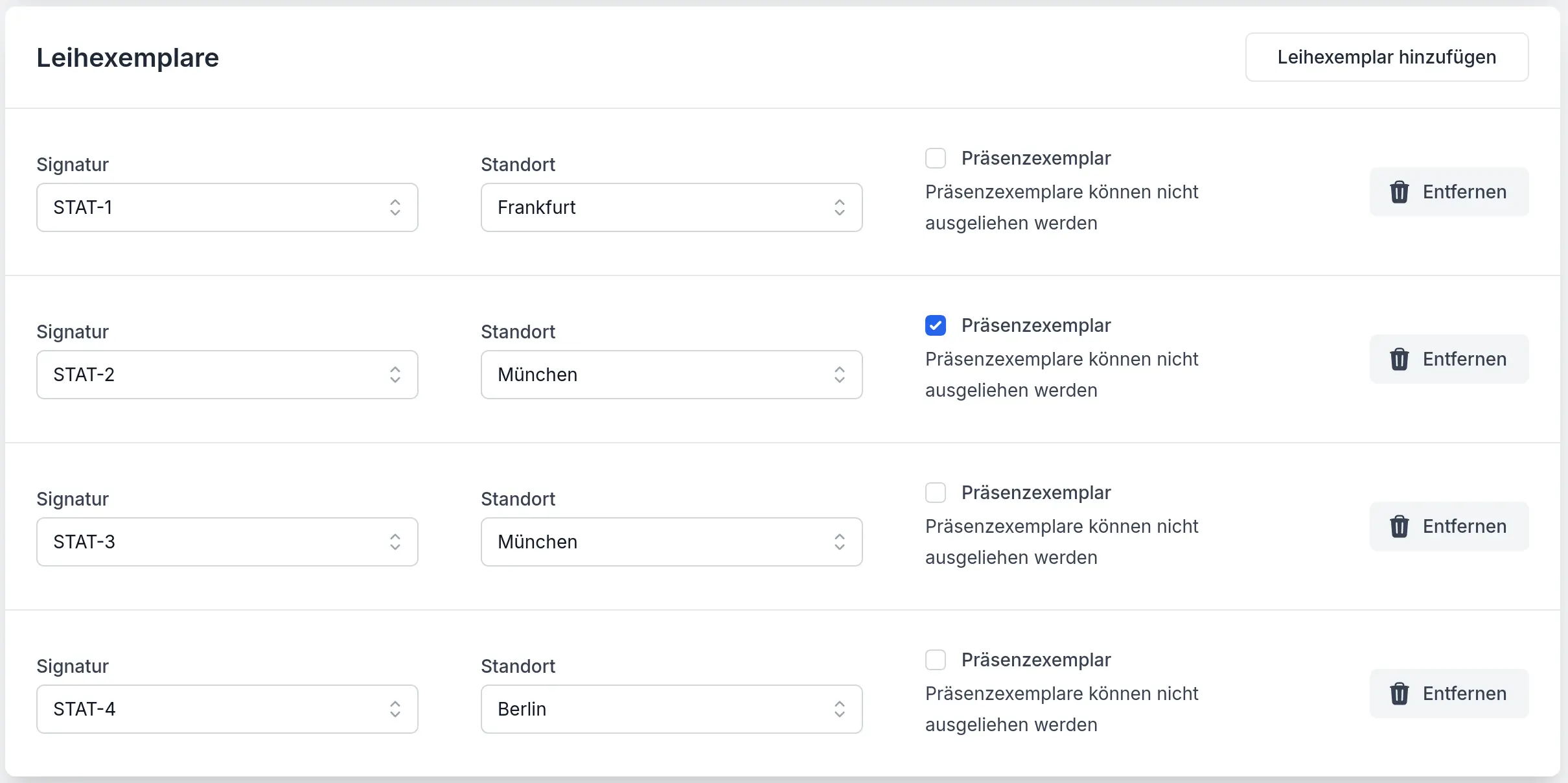
Screenshot of the German interface.
Whenever you acquire a new copy of a publication, you should record it in Librario. Navigate to the relevant publication and click Edit. In the Hard copies area you can add a new copy via Add a hard copy.
The form offers these key fields:
- The shelfmark identifies the copy on the shelf
- The location states where the copy can be found
- Enable the Reference-only copy option when the copy should not be lent out
Assigning systematic shelfmarks
The shelfmark is the “address” of a copy on the shelf. A well-considered scheme makes books much easier to find. The most popular approaches are based on subject area or publication date.
When structuring by subject area, you use prefixes such as “STAT-123” for structural-engineering literature.
The advantage is that thematically related titles stand together.
It is best to align the scheme with your established categories.
Structuring by publication date (e.g. “2023-042” for the 42nd copy in 2023) is especially suited to journals, where the chronological information matters.
Combinations are possible too, such as “STAT-2023-042”.
QR codes on each copy
Librario automatically generates a QR code for every hard copy. It opens the copy’s page on a smartphone, where users borrow or request it and return it. To print a QR code, open the hard copy and choose Print label. Attach the code where it is clearly visible, typically on the spine.
A central inventory overview
You reach the central management area via the user menu (top right) under Our account. Here you find important functions for systematic organisation:
Under Manage hard copies you find a complete overview with extensive filter and search functions. Under Manage location of hard copies you can tidy up and merge location names. These tools are especially valuable for regular stocktakes and ongoing inventory care.
Self-service or loan request: choosing your workflow
When Librario shows two ways to the same book, nobody knows which one counts. Someone who clicks Borrow while your library ships books waits for a book your team never heard about. So decide which way applies in your library.
- Borrow (self-service): users take the book from the shelf and record the loan in Librario, on the publication page or via the QR code on the copy.
- Request loan, or Place hold when every copy is on loan (loan request): users ask your team for a copy. Librario creates a task, your team gets the book to them, for example through internal mail, and records the loan.
Which ways users see is set by administrators with self-service borrowing, under Our account → Settings → Hard copies.
| How your library works | Recommendation |
|---|---|
| Users fetch books themselves from open shelves | Keep self-service borrowing on (the default). Loan requests remain for books at other locations and for titles that are all on loan. |
| Your team ships books on request, for example through internal mail | Turn self-service borrowing off. Users then only see Request loan or Place hold. |
Only turn it off with loan requests
Turn self-service borrowing off only if the loan request is included in your plan. Otherwise users have no way to get a copy in Librario.
With self-service borrowing off:
- Only librarians and admins record loans, including on behalf of other users.
- Users return their own loans themselves.
- People who placed a hold get no automatic notice when a copy becomes free. The hold dialog tells them the library will get in touch. As soon as your team lends them the copy, Librario notifies them.
- When a copy of a held title comes back, your team hears about it through the shared mailbox or the assigned person, depending on the notification routing.
Handling loan requests
When someone needs a physical copy, they place a loan request straight from the publication page. Librario turns it into a task and notifies your team, so you can coordinate these requests without anything getting lost in an email inbox. The whole library team handles them, so you can hand this routine to student assistants or an office assistant and still keep the overview (see roles and permissions).
Board and queue
You find every open loan request under Tasks → Loan requests. The board groups requests by title and shows, for each title, the number of open requests and an availability status: whether at least one copy is immediately available to lend, whether all copies are on loan (with the duration of the longest running loan), or whether there are no lendable copies. Overdue requests are highlighted in colour; when a request becomes overdue is set by the processing deadline.

Screenshot of the German interface.
Clicking a title opens the title-specific queue in the order requests came in. There you see the status of each copy, including the current borrower and loan duration for copies on loan.

Screenshot of the German interface.
Requesting on someone’s behalf
When someone calls or emails, place the loan request yourself: on the publication page or a copy’s page, click Request loan or Place hold and pick the person the copy is for in the dialog. With advanced task management, the Tasks → New loan request menu opens the same dialog. When the request comes from a copy’s page, the task shows that copy’s location.
Fulfil or decline
You settle a request in one step: pick a free copy and lend it straight to the requester with Borrow. Librario closes the loan request automatically and notifies the person of the fulfilment. The physical hand-over, for example through the internal mail, is organised by your team; Librario records the loan and sends the notification. When a request does not fit, decline it with Decline directly from the queue; the requester is notified in that case too.
For held titles, you see the hold in the queue and lend a returned copy to the next person waiting.
Notification routing
How new loan requests reach your team is set by administrators in the account settings, under Auto-assignment → User requests. You either assign requests to a person or notify a shared mailbox. If a request in the shared mailbox is not picked up within the configured processing deadline, Librario sends a reminder to the same address list so no request is left behind.
Frequently asked questions
What deleting a copy does
Deleting a hard copy also deletes its entire history irrevocably.
Tidying up location names
Because locations are entered as free text, typos can creep in. Under Manage location of hard copies you see the number of copies per location and can correct or merge names.
Moving copies
To move a copy to another location, open it in the detail view. Via Edit you can update the location and save the change.