Searching for publications
This guide shows you how to use Librario’s full-text search.
Using the search
The search page has three main areas. At the top is the search bar, with extra options such as full-text search or searching your favourites. On the left are the filters. They let you narrow down the search results by different criteria. The search results appear in the main area.
By default, Librario searches only the bibliographic details of the publications. To search the full text of the attached files as well, tick Search full text. You can also search only your favourites instead of the whole library.
Search results are sorted by relevance. Choose Sort by → Date to show the newest publications first instead. This helps when you want to find the current state of research on a topic. The date doesn’t tell you whether a standard is still valid: the status on the detail page does.
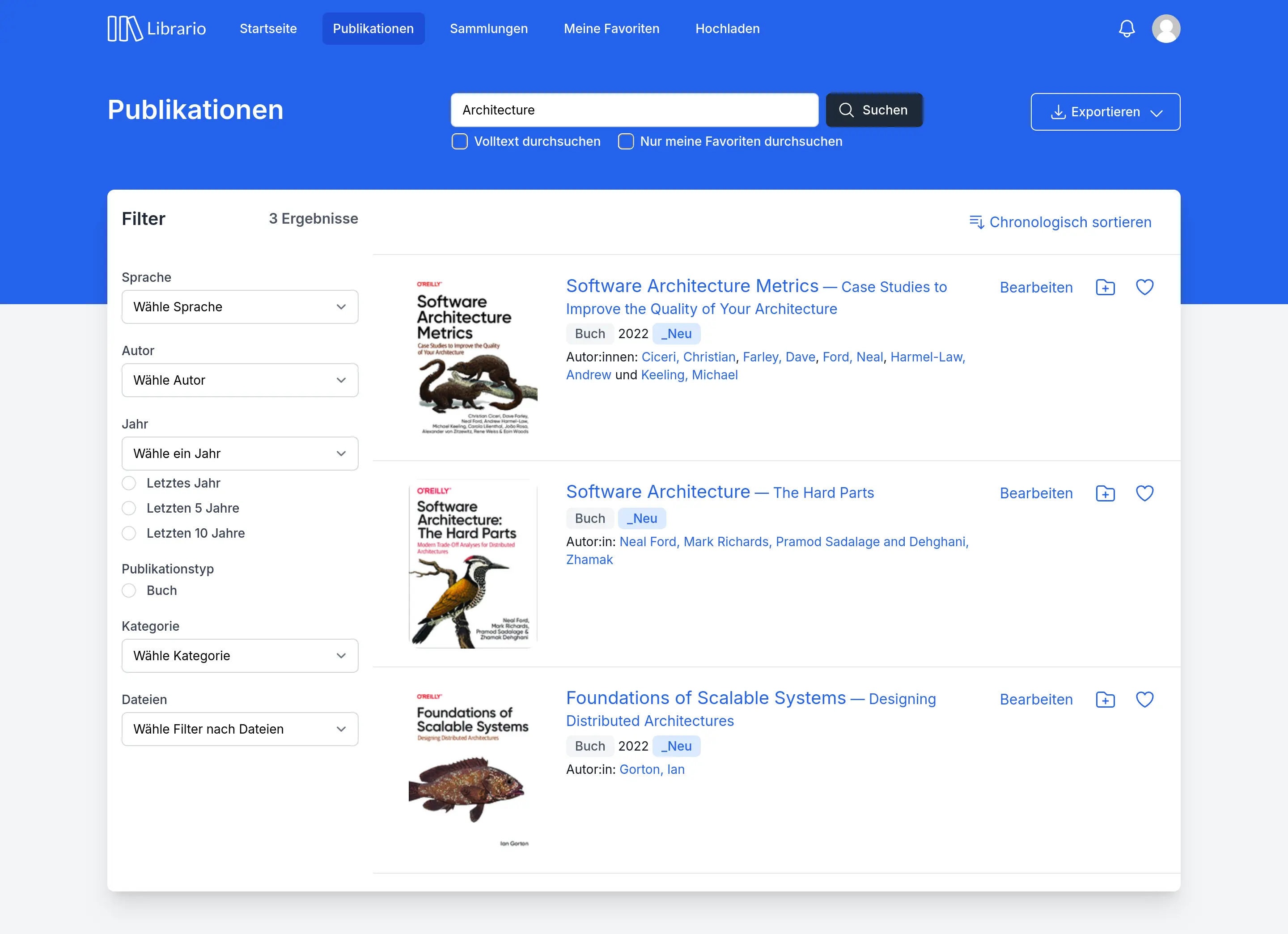
Screenshot of the German interface.
Entering search terms
The search gives you several ways to find exactly the right publications.
If you search for Eurocode 2, Librario finds all publications that contain both terms, “Eurocode” and “2”, anywhere in the text.
Put the term in quotation marks ("Eurocode 2") to search only for the exact phrase.
The search splits German compound words into their parts: a search for Beton (concrete) also finds “Stahlbeton” (reinforced concrete) through compound splitting.
You don’t need to search for singular and plural separately: entering Haus (house) also finds “Häuser” (houses) through stemming.
This also works for English, French, Italian and Spanish: beam also finds “beams”.
Which language rules apply depends on the publication’s Language field. If no language or a different language is set, Librario stems words using the German rules. Librario only splits compound words when the language is set to German. So for literature in English, French, Italian or Spanish, check that the Language field is set.
Searching by standard number
Hyphens, slashes and colons only separate the parts of a standard number: EN 1992-1-1 and EN 1992 1 1 return the same results.
Without quotation marks, each part only has to appear somewhere, so EN 1992-1-1 also finds DIN EN 1992-1-2.
Put standard numbers in quotation marks: "EN 1992-1-1" finds DIN EN 1992-1-1 but not part 1-2.
The national annex appears next to the base standard: "EN 1991-1-4" also finds DIN EN 1991-1-4/NA.
Filtering results
Filters narrow your search results down further. They are especially useful when a search returns too many results.
The filters Language, Author, Editor, Series, Journal and Organisation are self-explanatory. With Files you show only publications with or without attached files.
Filtering by publication type
This filter limits the search results to one publication type. For example, show only theses, articles, standards or books.
Filtering by category
Categories act as filters for the search results and are not part of the full-text search. They let you search within specific subject areas.
Filtering by period
In the Year filter, choose a specific year or one of the preset periods: Last year, Last 5 years or Last 10 years.
Viewing publication details
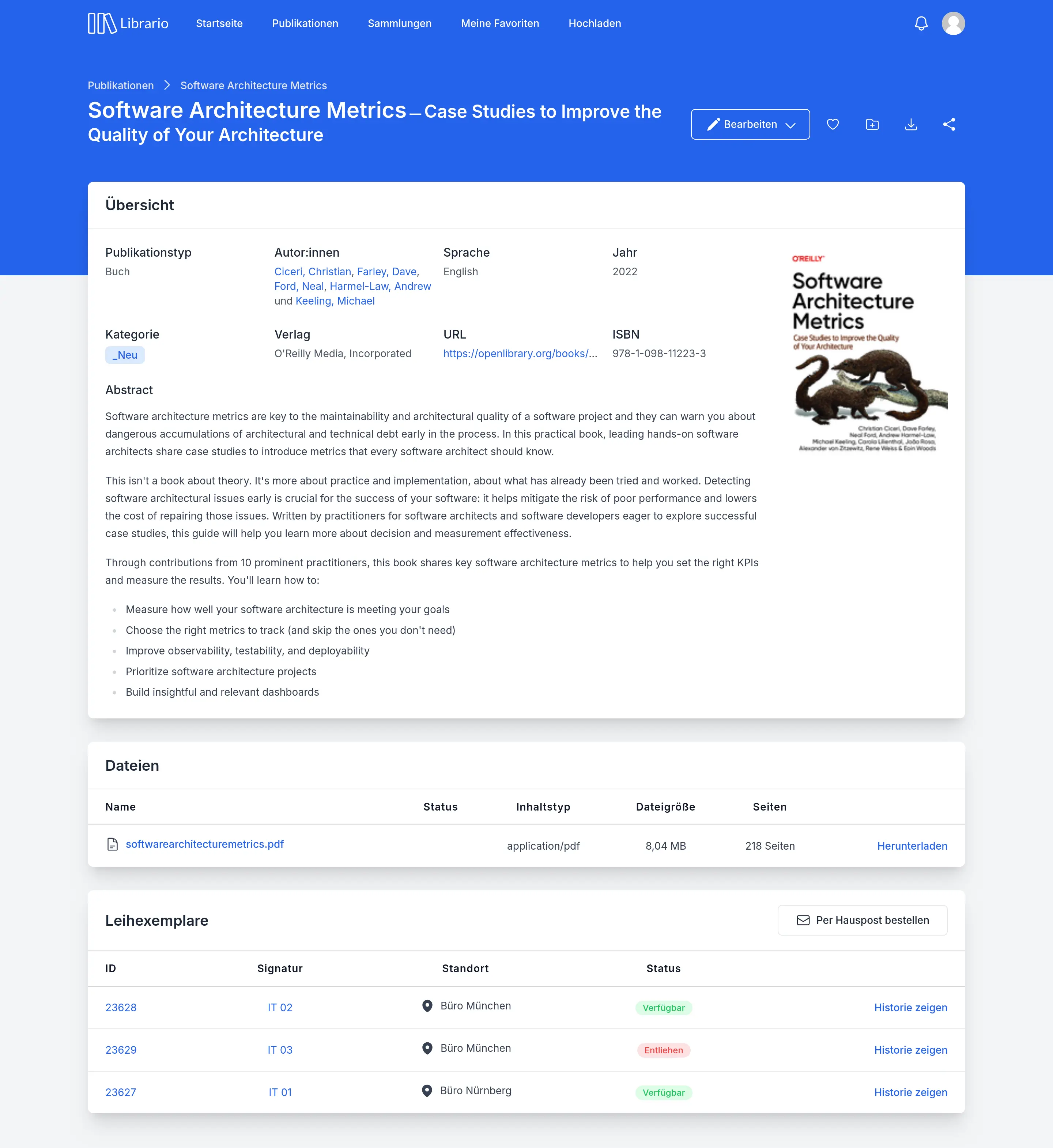
Screenshot of the German interface.
A publication shows its information in several areas:
Managing a publication
At the top you have several actions: you can add the publication to your favourites or organise it in a collection.
For academic work, you can export the bibliographic details in BibTeX or EndNote format to cite the publication correctly. Librario does not replace a reference manager such as Citavi or EndNote: it is your team’s shared library. After exporting, you cite from your reference manager. The comparisons show how the two work together.
To point your team to a relevant publication, you can share the link by email.
If you spot errors in the bibliographic details, report them straight to your library team with Report error.
Viewing bibliographic information
These areas show the known metadata, for example the publication year, the contributors or a URL. If notes are saved for the publication, they appear here as well.
For a standard, you also see its Status (Active or Withdrawn) and its Predecessors and Successors. If a successor is in your library, click its number to open it.
Opening or downloading files
Here you find all files attached to the publication, such as the full text, the table of contents or the index. You can open any file directly in the browser or download it to your computer.
Checking hard copy availability
The list of hard copies shows at a glance which copies are available. You see straight away which books are currently available or on loan. Reference-only copies are clearly marked: you can only use them on site. Each copy shows its exact location.