Borrowing hard copies
This guide explains how you, as a user, can borrow and return hard copies in Librario.
How the lending system works
Hard copies are the physical books, journals, and other media in your library. A single publication can have several hard copies, for example when a title is in high demand or should be available at more than one location.
Most corporate libraries run an open lending system. Copies are freely accessible and there is no central issue desk. Librario offers two ways to a copy. With Borrow you take the book from the shelf yourself and record the loan in Librario, so other users see who has the copy and can contact you directly. With Request loan or Place hold you ask the library team for a copy, and the team gets it to you. Your library decides which ways you see: if it ships books on request, only the loan request appears.
Borrowing via QR code
The most convenient way to borrow a copy is the QR code. If your library team has labelled the copies with Librario QR codes (typically on the spine), simply scan one with your smartphone. Most modern smartphones read QR codes straight from the normal camera app, so a separate scanner app is not needed.
The code opens the copy’s page. There you borrow it, if your library uses self-service borrowing, or ask for it with Request loan. When every copy of the title is on loan, you use Place hold. If you send the request from a copy’s page, the library team sees its location right in the request.
Borrowing from the publication page
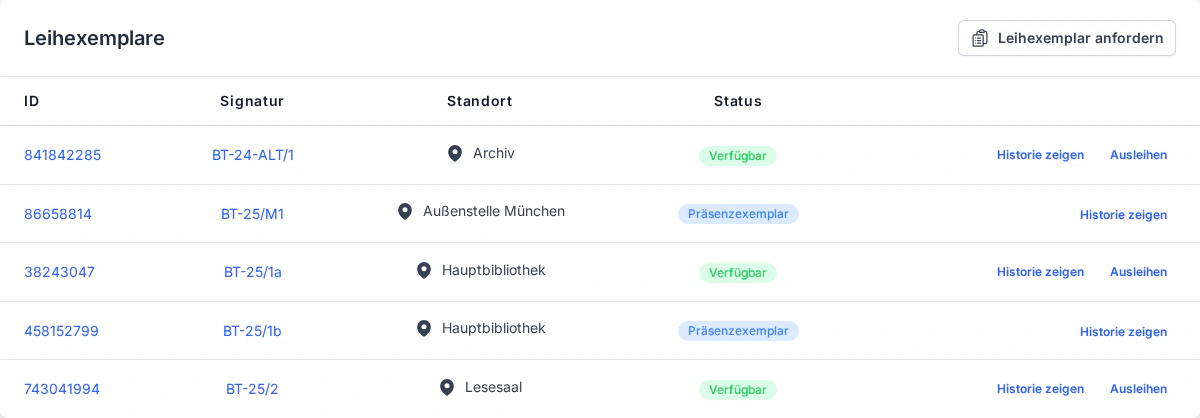
Screenshot of the German interface.
Alternatively, you can borrow copies directly from the publication page. Use the search to navigate to the publication you need. Towards the bottom you will see a list of all available copies with their location, shelfmark, and current status. This information helps you find the copy on the shelf. Once you have it in hand, mark it as borrowed using the Borrow button.
Reference-only copies
Some copies are marked as reference-only copies. These should not leave the library area and therefore cannot be borrowed in the usual way. Please respect this rule. If you need a reference-only copy for an extended period as an exception, talk to your library team directly.
Requesting a loan and placing a hold
Need a book that sits at another location or is currently on loan? Instead of tracking it down yourself, place a loan request straight from the publication page. The library team takes care of it and gets the copy to you, for example through the internal mail.
Which action you see depends on availability:
- When at least one copy is free, click Request loan.
- When every copy is on loan, click Place hold and join the queue. As soon as a copy comes back, it is your turn.
In both cases you confirm the request in a short dialog that names the publication title. You then track the status of your request under My loan requests.

Screenshot of the German interface.

Screenshot of the German interface.
My loan requests
You keep track of your own loan requests in the My loan requests view. It shows the current status of each request, and you can withdraw an open request at any time with Withdraw.

Screenshot of the German interface.
When self-service borrowing is off
If your library ships books on request, it has usually turned self-service borrowing off. The Borrow button is then missing, on the publication page and on a copy’s page alike. You ask for a copy with Request loan or Place hold, and the library team records the loan for you. You return your own loans yourself. If you placed a hold, the library gets in touch as soon as a copy is free; there is no automatic notice in this case.
Returning copies
When you return a copy, you should record this in Librario as well. That keeps the inventory showing the copy as available again and lets the library team pass it on to the next person who placed a hold on the title. Returning works the same way as borrowing: either scan the QR code or use the corresponding function on the publication page.
What happens when you return a copy?
If the returned publication has a hold, the return dialog names the next person in the queue, and the library team gets a notification. When self-service borrowing is on in your library, the person holding the top spot is additionally notified directly, by email and in the app. Librarians see the queue right on the publication, in the Holds tab with a count badge, and land there automatically after returning a copy that had a hold. You see your own position in the queue both on the publication page and under My loan requests.